Digitise Forms Installation
Digitise Forms is a software program that enables you to design and create effective, simple-to-use eForms quickly and easily. You can use an eForm to collect data, update information, request services, and more. Before attempting to install Digitise Forms, you must make sure that your system meets both the specified minimum and third-party requirements. You must also make sure that you have a valid product licence for Digitise Forms, otherwise, you will not be able to use Form Studio after installation.
The installation of this software must be completed by an Administrator account as Administrator rights are required to install the necessary components on the machine. Before you can carry out the installation, you will need to download the latest Product Download from the NDL Community Portal. The Product Download can be used to either perform a new install of Digitise Forms or to update an existing version. We recommend taking a backup of your existing installation before performing an upgrade.
 Installation Files
After downloading the installation files, you will need to unzip them. You can unzip the files directly onto individual machines (physical or virtual) or to an accessible location such as a network or shared folder. Once the folder has been unzipped, locate the ndl-software_autorun (Application) file from within the list of extracted files:
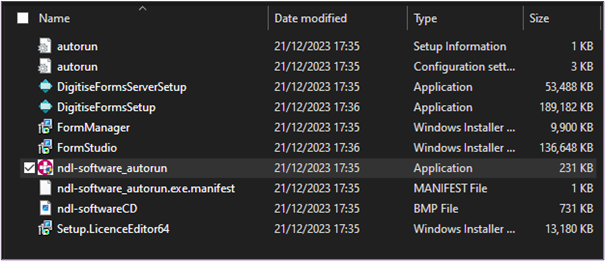
NDL Software Autorun
Right-click the autorun file and select Run as administrator. A dialog box will open within which you will be prompted to allow the install app to make changes to your device. Click Yes to allow the changes to be made. This will open the Digitise Forms autorun dialog box as shown below:
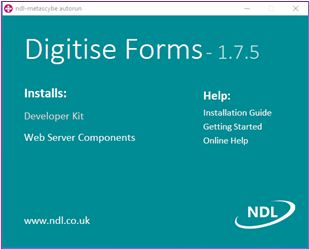
Clicking on any of the topics beneath Help on the right-hand side of the autorun dialog box will open those topics within the Digitise Forms Online Help. Clicking Developer Kit beneath the word Installs on the left-hand side of the screen will launch the NDL Digitise Forms Install Wizard.
NDL Digitise Forms Setup
When the initial NDL Software Limited software licence terms dialog box appears, agree to the software licence terms and conditions by checking (ticking) the box alongside the acceptance statement, then click the previously greyed-out Install button:
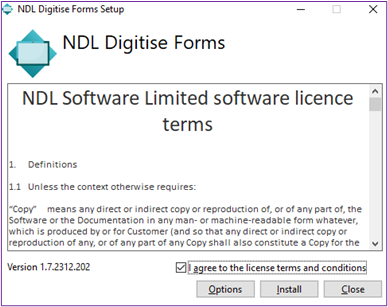
Digitise Forms Installation
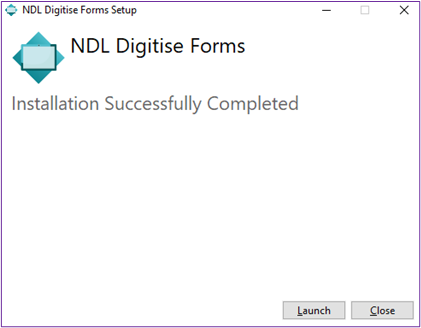
The setup wizard will now commence, and the required components will be installed on the target machine. When the components have been installed, the dialog box shown below will appear, confirming that the installation has completed successfully. Click Close:
Digitise Forms Licence Application
If this is your first installation of Digitise Forms on the target machine, you will need to enter valid product licence details in order to use the software. To apply the licence information, you will need to open Form Studio as an Administrator. When Form Studio opens, it will check the licence status and will display the following message if a valid licence can’t be found:
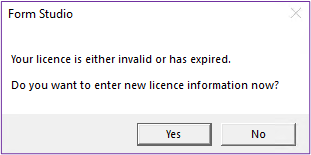
To apply your licence, click Yes. The About tab will then open within Form Studio, where you will find the Install Licence button:
Click the button to install your licence. The following dialog box will then appear:
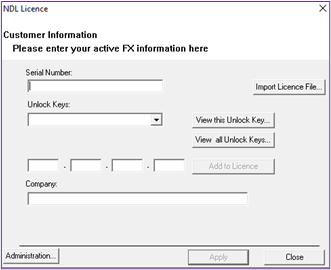
To install your licence, click the Import Licence File button. This will open a File Explorer window within which you can browse for and select the licence file which should have been provided by NDL. Speak to your systems adminstrator if you are unsure where the licence file has been saved.
Once the file has been selected, the boxes shown above will automatically be populated with the required licence information. To apply the licence, click the previously greyed-out Apply button at the bottom of the dialog box. The message box shown below will then appear, confirming the licence information that has just been added. Note that, for security reasons, the Serial Number and Unlock Key information has been redacted in the following image:
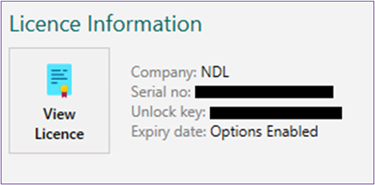
Once the licence has been applied, the Digitise Forms installation process will have been completed.